The app

A day with Porooch, screen by screen.

This is the app your crew installs, as it looks on a phone. The labels are printed once. After that, everything on this page is a scan or a tap.

  1. Step 1

    Scan to pick up

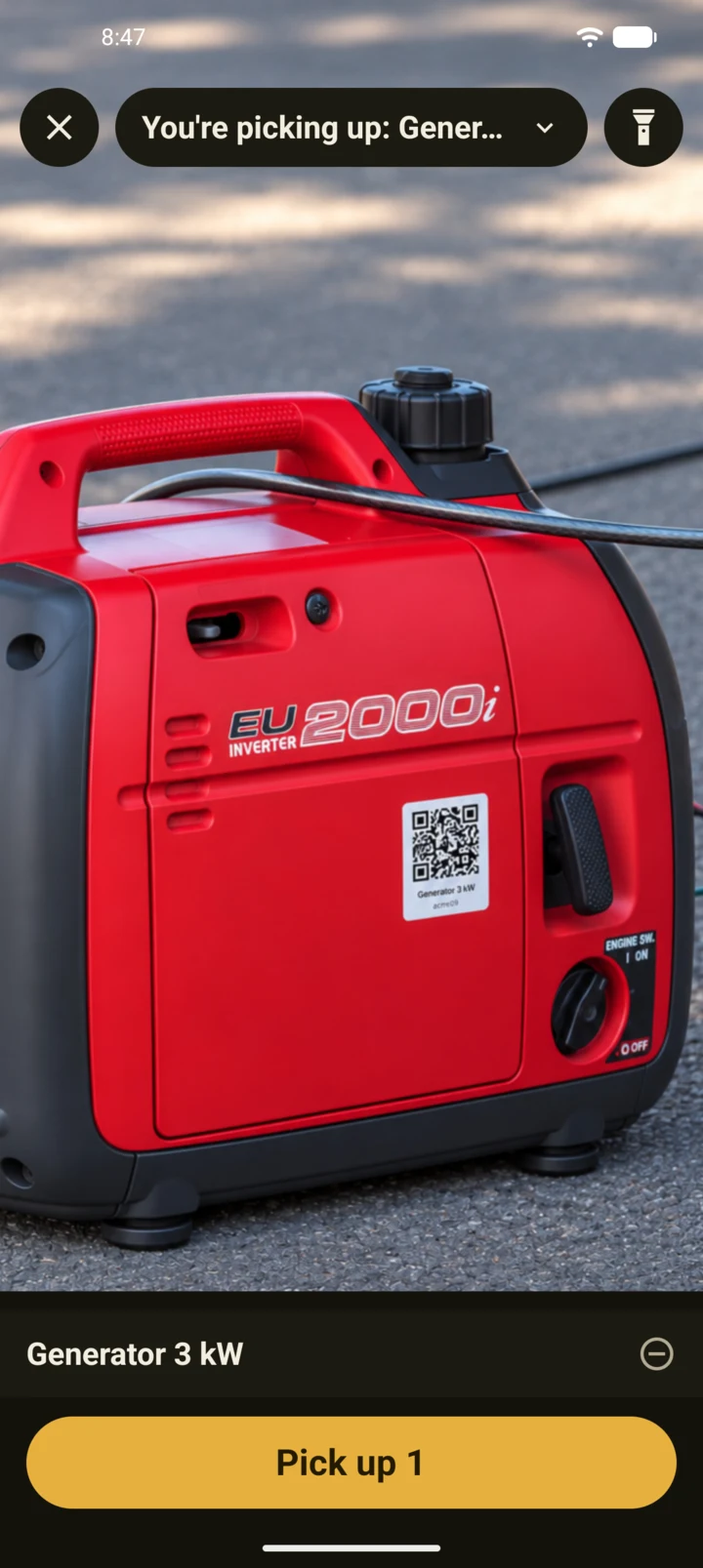
    Point the phone at the label on anything you’re taking. Scan one item or a whole kit, then tap Pick up once. If someone else had an item, they’re told. No signal in the basement? It sends when you’re back online.
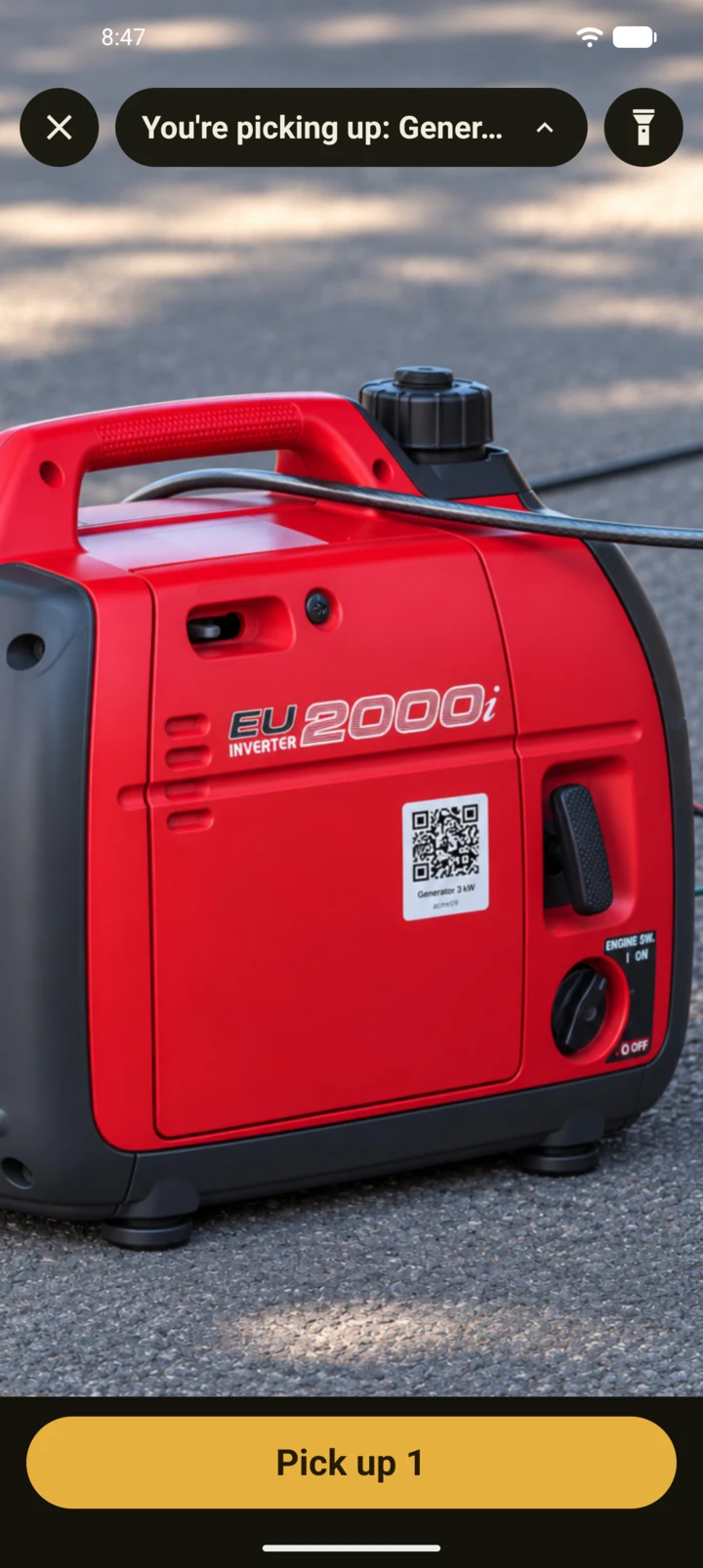
    The Scan screen: the camera pointed at a red inverter generator with a QR label on its side, “You’re picking up: Generator 3 kW” at the top, a flashlight button, and a Pick up 1 button at the bottom.
    Scan
    The Scan screen with its batch list open under the camera: one row, Generator 3 kW, with a button to take it out, above the Pick up 1 button.
    The batch
  2. Step 2

    What’s in your hands

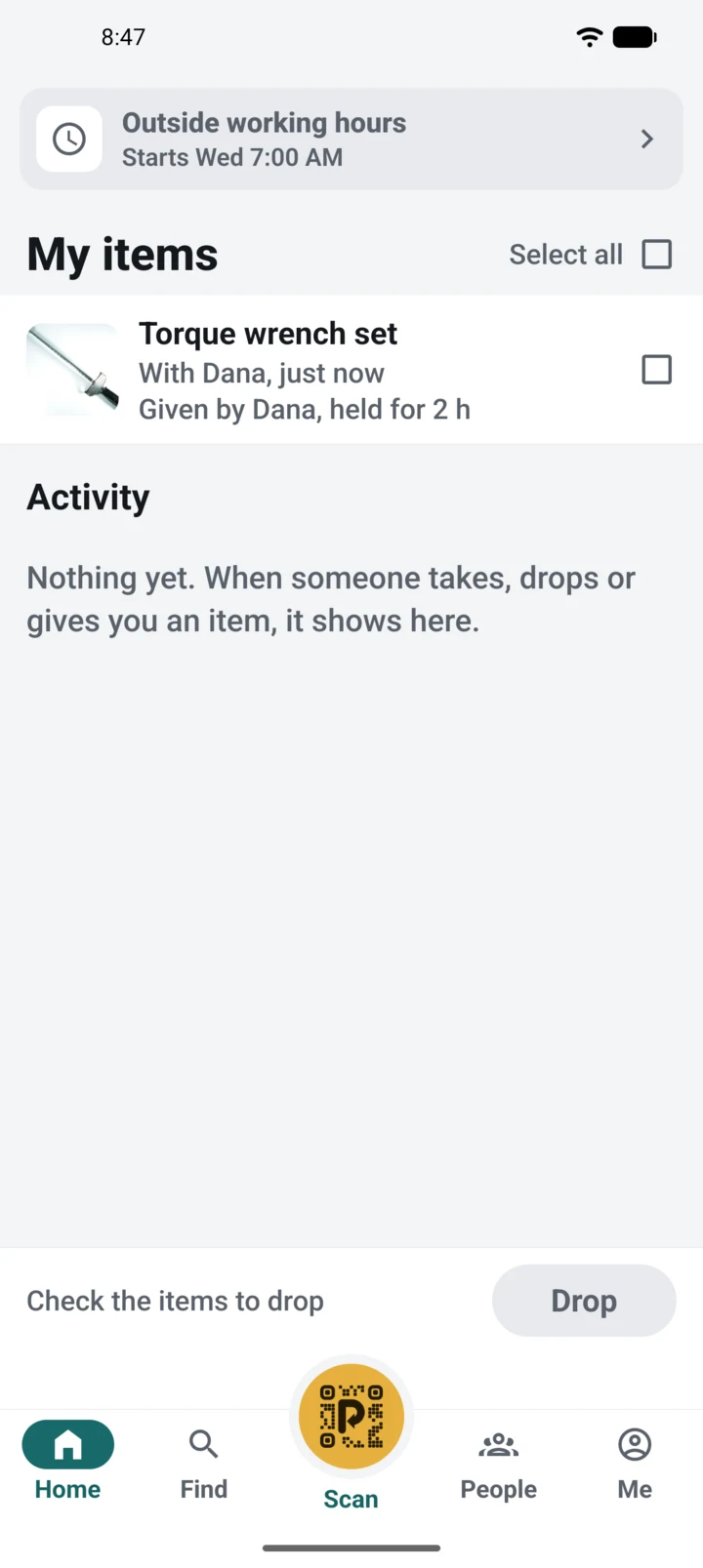
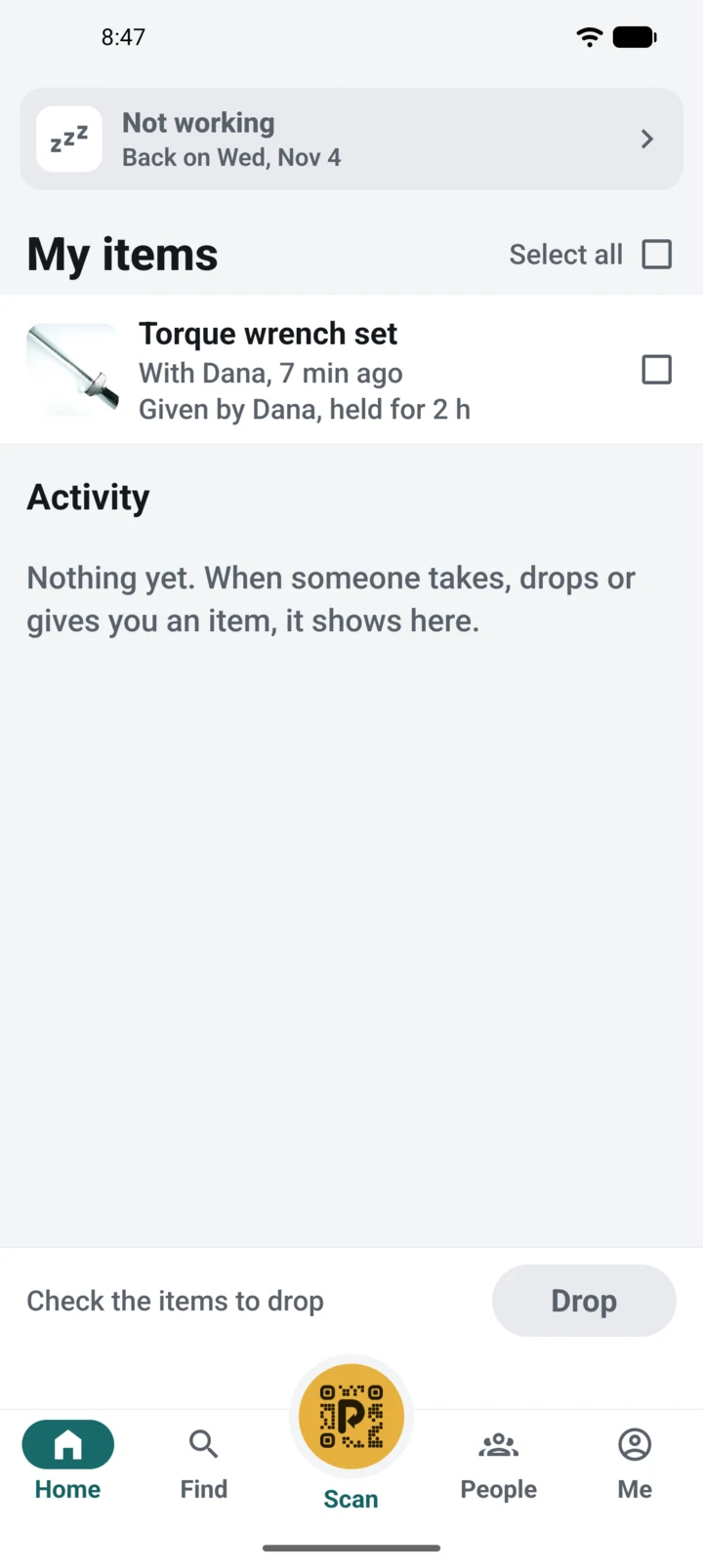
    Home lists what you hold and for how long. Back at the yard, check the items and tap Drop. The card at the top says whether your phone is sharing its location right now: green while you’re working and holding something, grey outside your hours or on a day off.
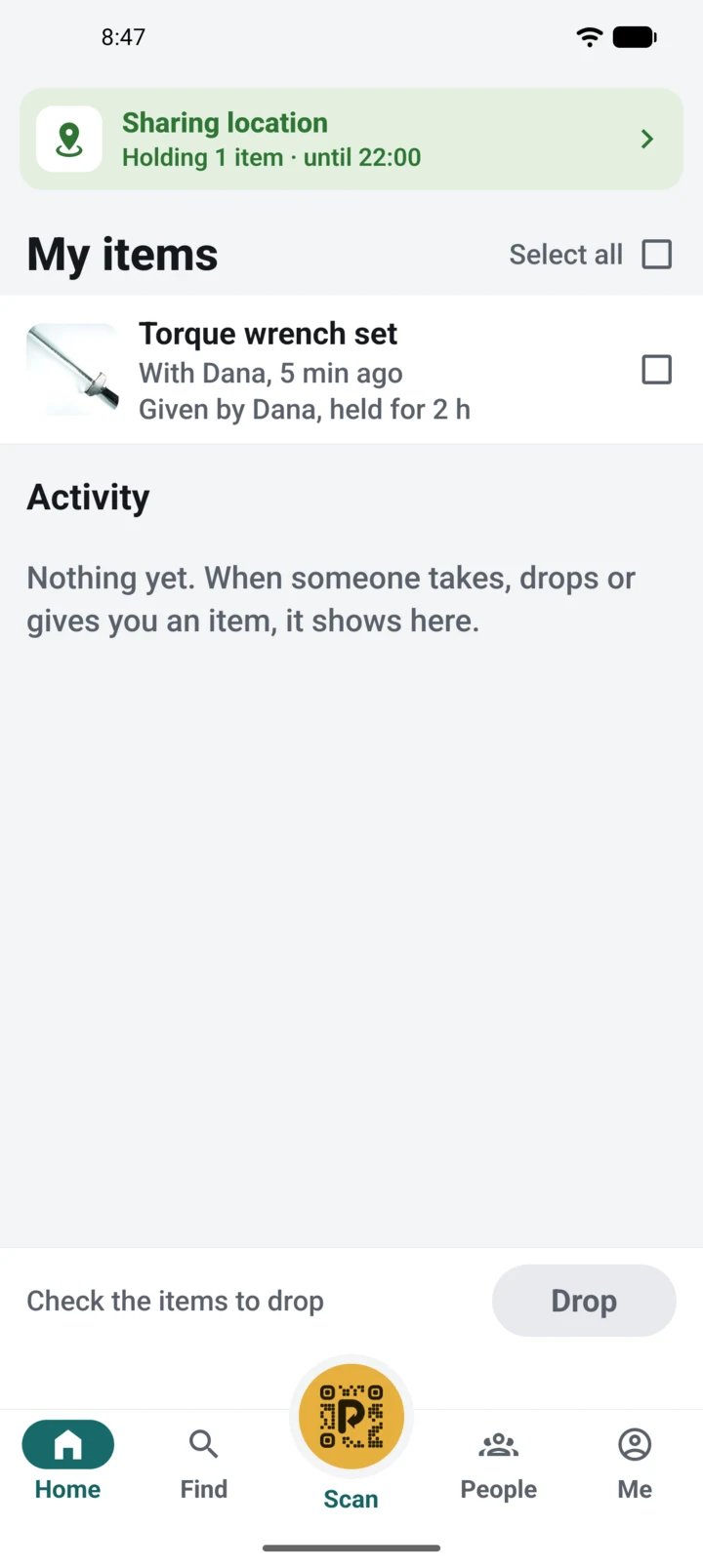
    The Home screen, headed My items: a green card reading “Sharing location, holding 1 item · until 22:00”, a Torque wrench set given by Dana and held for 2 hours, an empty Activity list, and a Drop button.
    Sharing
    The Home screen with a grey card reading “Outside working hours, starts Wed 7:00 AM” above the same Torque wrench set.
    Outside working hours
    The Home screen with a grey card reading “Not working, back on Wed, Nov 4” above the same Torque wrench set.
    Not working
  3. Step 3

    Find anything your workspace owns

    Every item, with who has it or where it was dropped, and how long ago. Search by name, or filter: near me, in custody, at a place, unassigned. Admins add items, print labels and draw places from the same screen.
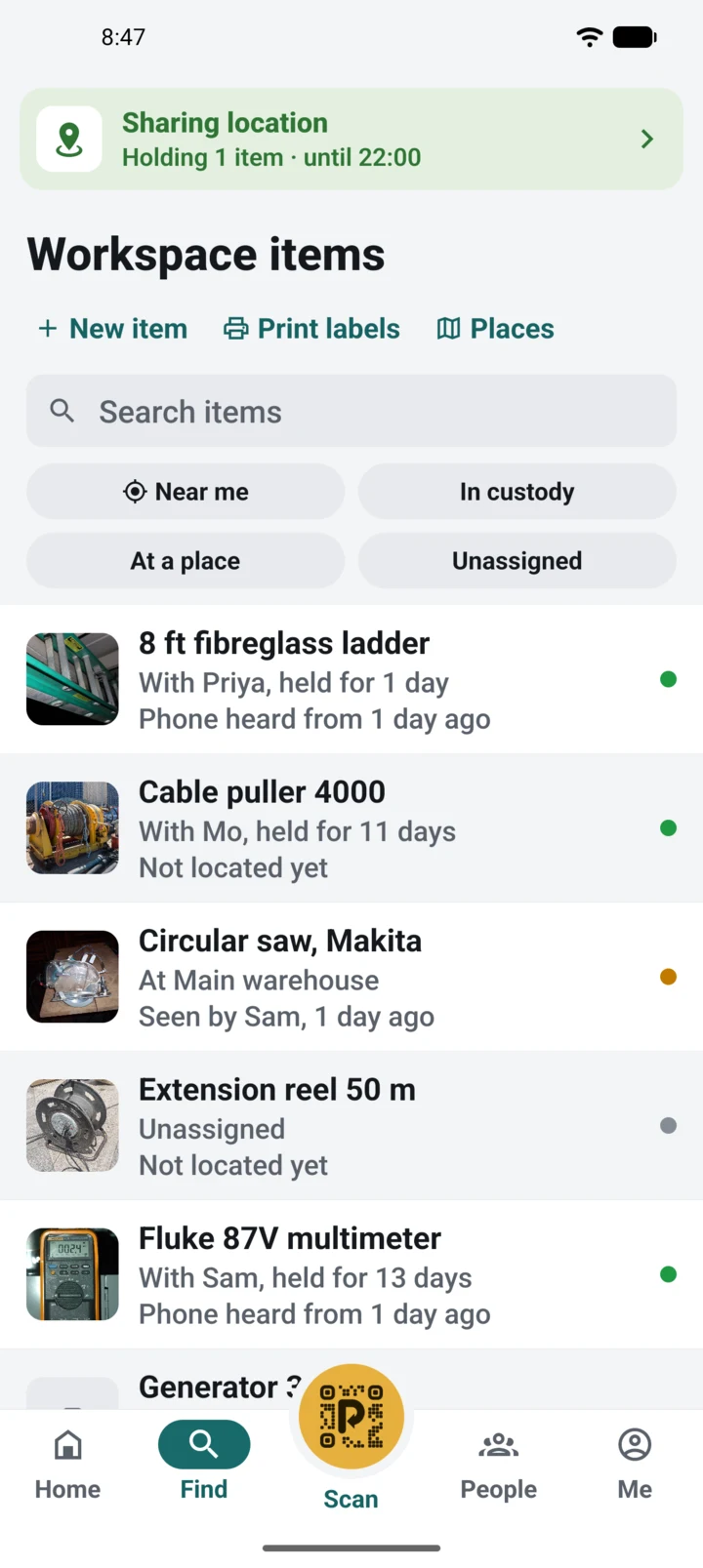
    The Workspace items screen: New item, Print labels and Places at the top, a search box, the filters Near me, In custody, At a place and Unassigned, and a list of tools with photos, each with who has it or where it is, when it was last heard from, and a coloured status dot, such as “With Priya, held for 1 day. Phone heard from 1 day ago” or “At Main warehouse. Seen by Sam, 1 day ago”.
    Find
  4. Step 4

    Who has it, and where

    Open an item to see it on the map, with where that location came from and how old it is. Get directions, or message or call the person holding it. Your crew can drop only inside a marked place, so nothing ends up at a gas station. An admin can drop anywhere, after confirming.
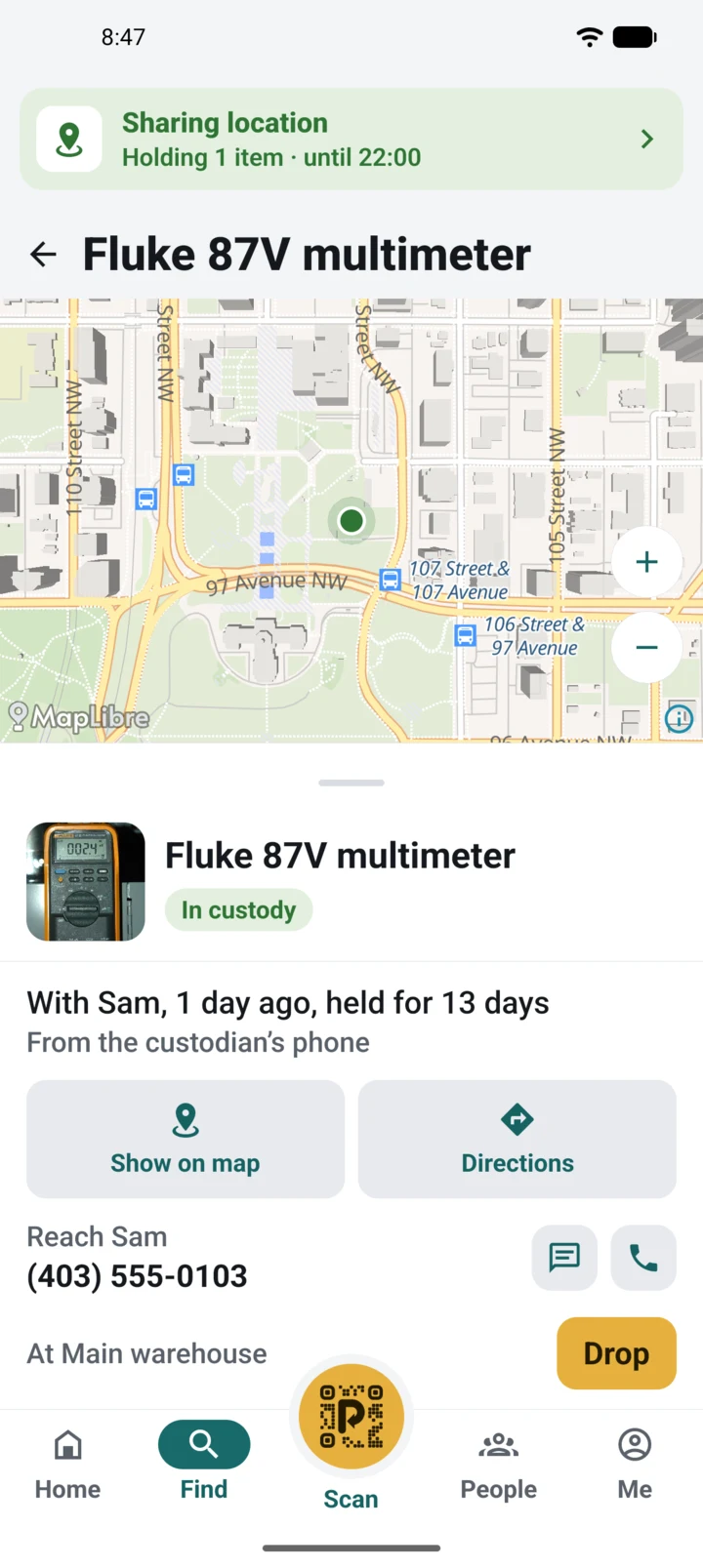
    An item screen for a Fluke 87V multimeter: a street map with its position, an In custody badge, “With Sam, 1 day ago, held for 13 days. From the custodian’s phone”, Show on map and Directions buttons, Sam’s phone number with message and call buttons, and a Drop button.
    An item
  5. Step 5

    Your crew, by email

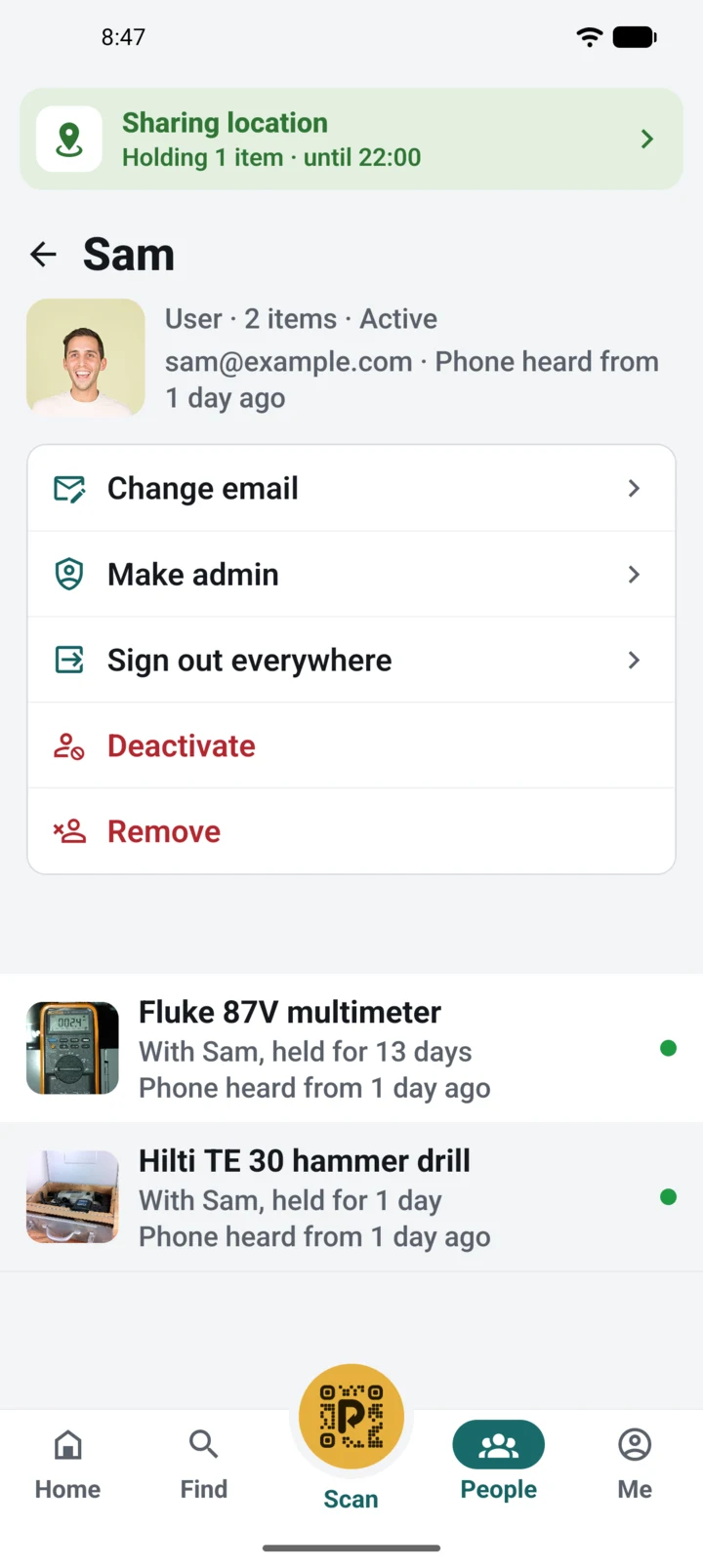
    Invite people by name and email. They sign in with a code we email them, so there are no passwords to forget. Each person shows what they hold and when their phone was last heard from. Admins can change an email, make someone an admin, sign them out everywhere or deactivate them, all from the phone.
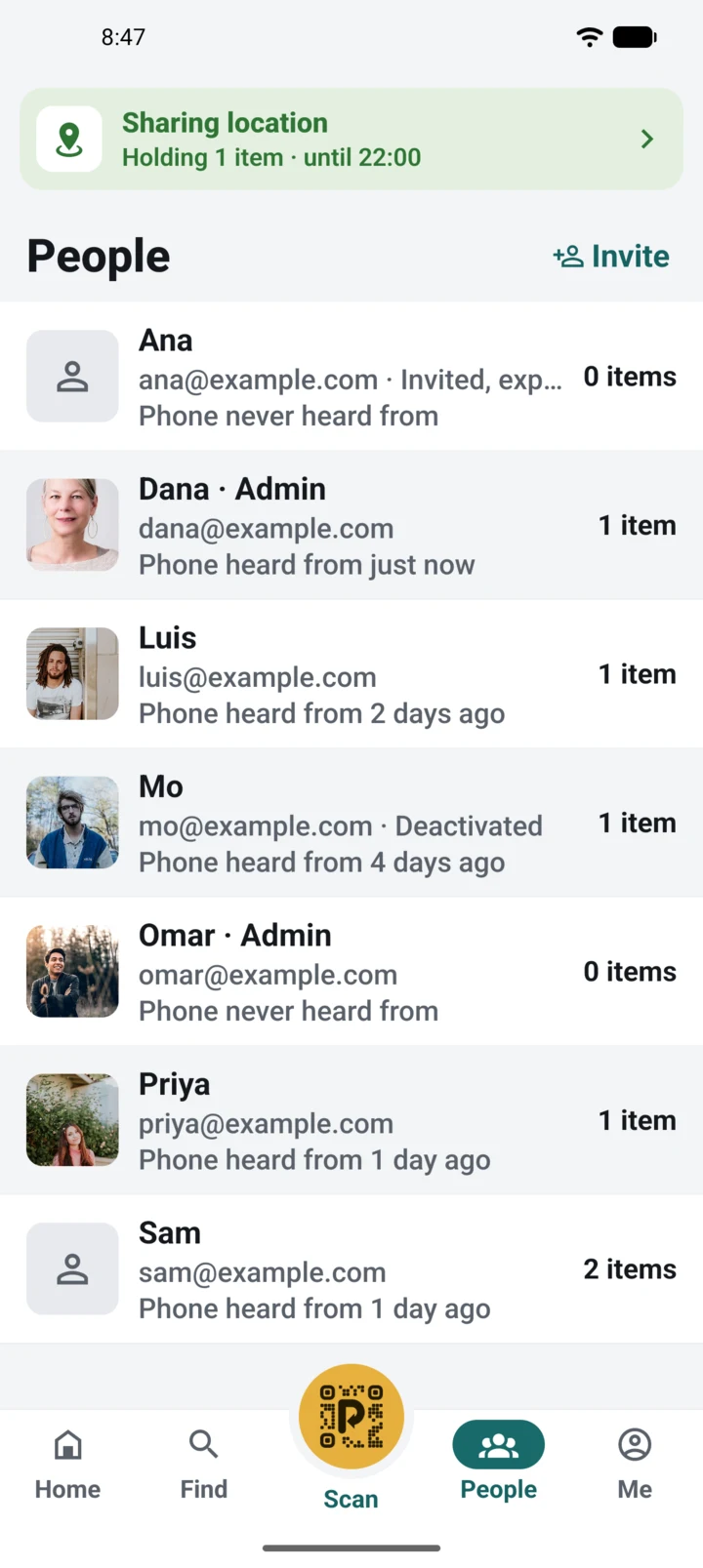
    The People screen with an Invite button: Ana, invited, with an expiry date; Dana and Omar, admins; Luis; Mo, deactivated; Priya and Sam. Each row has their picture, email, when their phone was last heard from, and how many items they hold.
    People
    Sam’s page as an admin sees it: User, 2 items, Active, his email and when his phone was last heard from; Change email, Make admin, Sign out everywhere, Deactivate and Remove; then the two items he holds, a Fluke 87V multimeter and a Hilti TE 30 hammer drill.
    A person, as an admin sees them
  6. Step 6

    Their phone, their hours

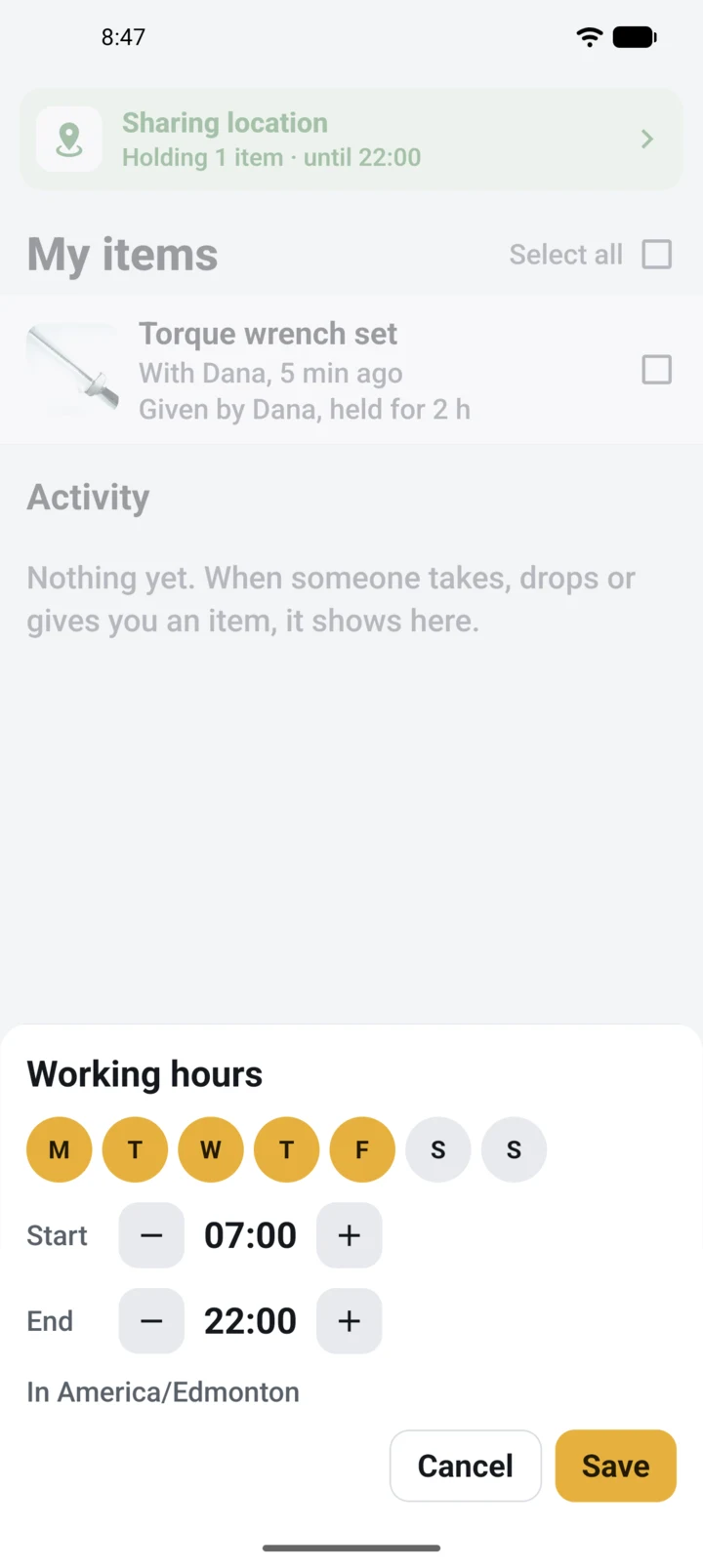
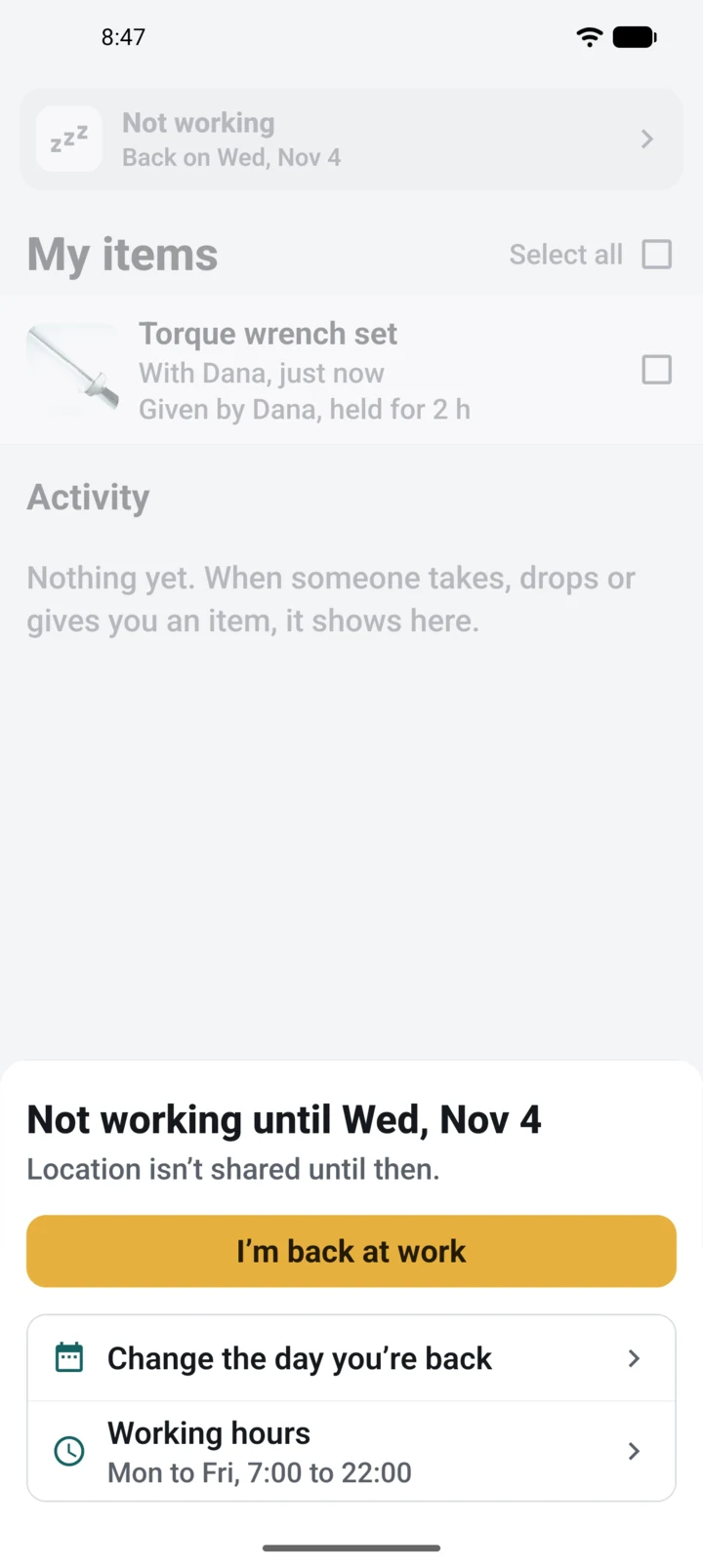
    Each person sets their own working days and hours. Outside them, the phone shares nothing in the background. Sick day or vacation? Tap the card at the top and choose Not working today, or until a date. Switch back with one tap.
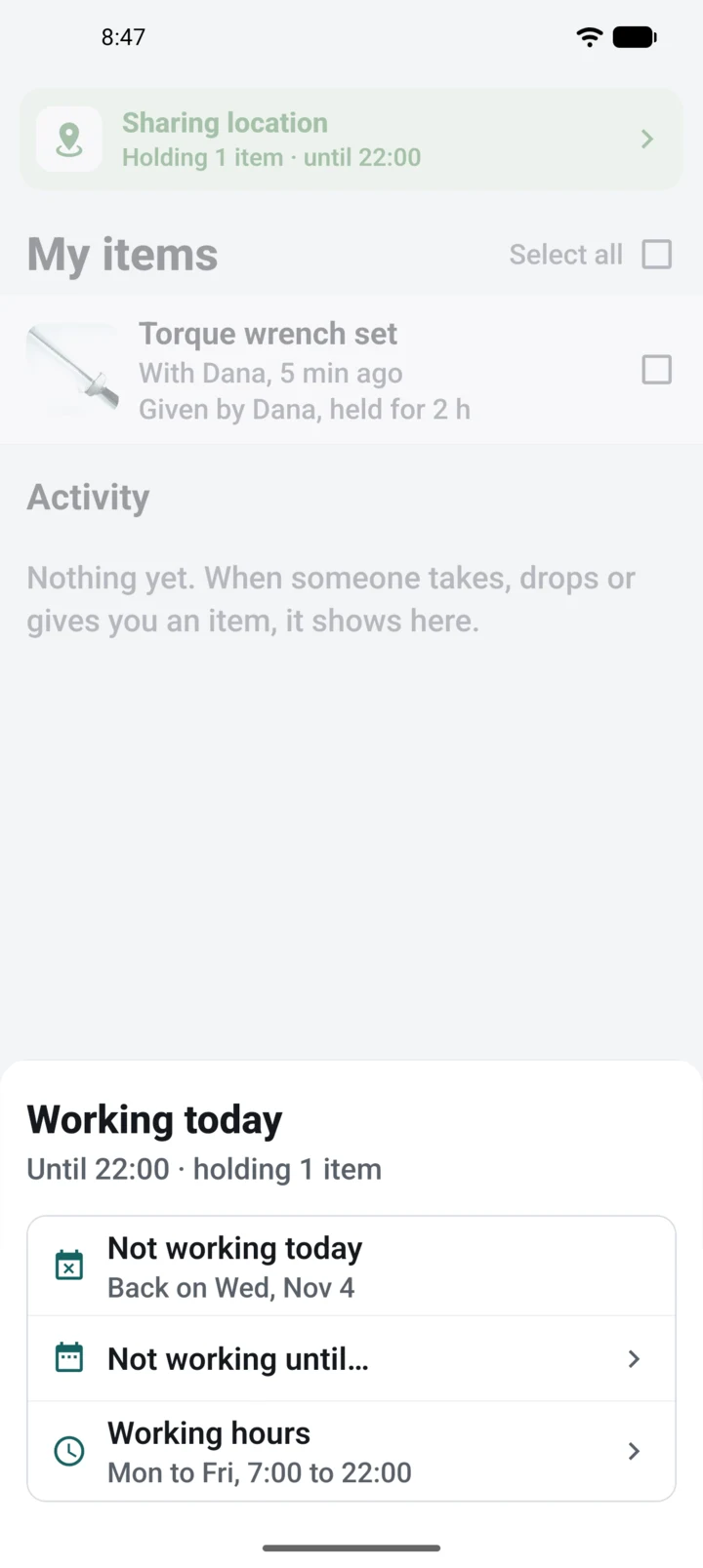
    The sheet the location card opens: “Working today, until 22:00 · holding 1 item”, then Not working today (back on Wed, Nov 4), Not working until…, and Working hours, Mon to Fri, 7:00 to 22:00.
    Tap the card
    The Working hours sheet: seven day buttons with Monday to Friday selected, a start of 07:00 and an end of 22:00 with plus and minus buttons, “In America/Edmonton”, and Cancel and Save buttons.
    Working hours
    The sheet “Not working until Wed, Nov 4. Location isn’t shared until then”, with an “I’m back at work” button, “Change the day you’re back” and Working hours.
    Not working

Get the app

GET IT ON Google Play

In closed testing. Write to us and we’ll add you to the testers.

Download on the App Store

Ready and submitted. Waiting on Apple’s review.

Free pilot

See it on your own gear.

A handful of crews are piloting Porooch this winter, free. We set it up with you: your places, your items, labels ready to print the same day.